Nokia X2-01 Flash File Link Available Version 8.71
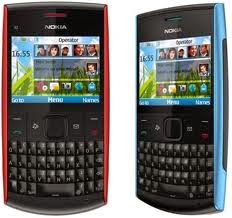
Nokia X2-01 RM-709 V08.71 Flash File – Complete Flashing Tutorial
If your Nokia X2-01 RM-709 is experiencing software problems such as freezing, boot problems, repeated restarting, or corrupted system software, reinstalling the correct firmware may help restore the phone.
This guide explains the general process of flashing the Nokia X2-01 RM-709 using Phoenix Service Software.
Important: Flashing firmware can erase user data and, if the wrong firmware is used or the process is interrupted, may make the phone unusable. Always verify the model and product code before proceeding.
Device Information
Model: Nokia X2-01
RM: RM-709
Firmware: V08.71
Connection: USB data cable
PC: Windows computer
Flashing tool: Phoenix Service Software
What You Need
Before starting, prepare:
Nokia X2-01 RM-709
Correct RM-709 V08.71 firmware files
Compatible USB data cable
Windows PC
Nokia USB connectivity drivers
Phoenix Service Software
A sufficiently charged phone battery
Do not use firmware intended for another Nokia model or another RM variant.
Step 1: Install the Required Drivers
Install the appropriate Nokia USB drivers on your Windows computer.
After installation, connect the phone to the computer with a USB data cable and allow Windows to detect the device.
If the computer does not recognize the phone, check:
USB cable
USB port
Windows Device Manager
Nokia USB drivers
Step 2: Prepare the Firmware
Make sure all firmware files belong to Nokia X2-01 RM-709 and the intended firmware version.
Phoenix normally expects firmware files inside its product directory. A commonly used structure is:
C:\Program Files (x86)\Nokia\Phoenix\Products\RM-709\Place the appropriate firmware files inside the RM-709 folder.
Do not rename firmware files unless you know exactly what you are changing.
Step 3: Open Phoenix Service Software
Run Phoenix Service Software as administrator.
Then select:
File → Open Product
Choose:
RM-709
Confirm that the selected product matches the phone you are going to flash.
Step 4: Select Firmware Update
From the Phoenix menu, go to:
Flashing → Firmware Update
The available firmware/product codes should appear.
Select the correct product code for your device.
Before continuing, carefully verify:
RM-709
Correct product code/region
Correct firmware version
Correct firmware files
Step 5: Start the Flashing Process
Once everything has been verified, start the firmware update according to Phoenix's instructions.
During the flashing process:
Do not disconnect the USB cable.
Do not turn off the computer.
Do not close Phoenix.
Do not remove the phone battery unless the software specifically instructs you to do so.
Avoid using a loose or damaged USB cable.
The phone may restart or temporarily appear to turn off during the process. This can be normal during firmware installation.
Step 6: Wait for Completion
Allow Phoenix to complete the entire flashing process.
When the software reports that the operation has completed successfully, wait for the phone to restart.
The first boot can take longer than usual.
Step 7: Check the Phone
After the phone starts:
Check whether the phone boots normally.
Check the keypad and display.
Test calling and messaging.
Check the USB connection.
Verify the software version if the phone provides that information.
If the phone works normally, the firmware installation is complete.
Common Problems
Phoenix Does Not Detect the Phone
Try:
Installing/reinstalling the appropriate USB drivers.
Using another USB port.
Using a known-good data cable.
Restarting the computer.
Connecting the phone when Phoenix requests it.
Firmware Is Not Showing
Check that:
The firmware belongs to RM-709.
The files are in the correct Phoenix product directory.
The firmware package is complete.
The product code is compatible with the phone.
Flashing Stops or Fails
Do not repeatedly flash random firmware packages. First check the Phoenix error message and verify that the firmware, product code, drivers, cable, and phone model are correct.
Phone Does Not Start After Flashing
If the flash reports an error, first check the exact error message and confirm that the correct RM-709 firmware was used. If the device still does not start, professional repair equipment/service may be required.
Important Safety Notes
Firmware flashing is not a guaranteed repair for hardware problems. If the phone has a damaged charging port, faulty memory, power-management problem, damaged display, or other hardware failure, reinstalling firmware may not fix it.
Always verify the exact model and RM number before flashing. Never flash firmware intended for a different device.
Frequently Asked Questions
Is RM-709 firmware compatible with Nokia X2-01?
RM-709 is the product/RM designation associated with the Nokia X2-01 variant. Always verify the label on your specific phone before flashing.
Will flashing erase my data?
It can. Therefore, back up important contacts, messages, photos, and other personal data whenever possible before starting.
Can I use a different Nokia X2-01 firmware?
You should only use firmware confirmed to be compatible with your exact RM variant and product code.
Can flashing fix a software-related boot problem?
It can sometimes resolve corrupted or damaged system software, but it cannot repair physical hardware faults.
Final Advice
The most important part of Nokia X2-01 flashing is firmware compatibility. Do not select a firmware package simply because it has the same phone name. Verify the RM-709 designation and product code before starting the procedure.
What Type Of Problem Solve After Flash?
- when you turn on your Nokia Phone Only Show Nokia logo on the screen.
- the phone is auto restart without any region.
- when you open any application device is stuck.